Thursday, May 22, 2014

JetStream - Online School for Weather


Looking for resources to teach about weather or learn about weather?  I recently discovered a excellent resource from the National Weather Service called "JetStream".  

JetStream is a outstanding website that has a ton of resources for learning all different aspects of weather.  Topics cover, for example, the Atmosphere, the Ocean, Thunderstorms, Lightning and information regarding the Doppler Radar.  

Here's a sample from their page about Tornadoes: 


The Tornado page discusses everything from wind shear, Doppler Radar images and the Enhanced F-Scale. There is also a WMV video file that shows a train being blown off the track by a Tornado.  Click here to go to the Tornado page.  

JetStream also has several pre-made lesson plans that cover multiple weather topics.  Click here to go to their lesson plan page.  

Looking for more resources on Tornadoes or Hurricanes?  Please visit my Livebinders, Understanding Tornadoes and Understanding Hurricanes:

Friday, May 16, 2014

5 Free NASA IPAD Apps


NASA has multiple STEM applications that Educators and Students can use to enhance their learning experience. If you want to see the entire list, click here.  

Here are 5 free Ipad apps that are definitely worth checking out:

The main NASA app is a must have in your STEM collection.  The app includes videos, images, Tweets from NASA, NASA TV and much more.  

If you are looking to get started with the multiple resources that NASA has to offer both Educators and Students, this is a app that would be a great starting point.  


The NASA Television app is a great app to add to your NASA collection.  The app includes live and on-demand videos from the NASA Television program that is also viewable via the NASA website.  This is a great app as well because you can see a schedule of programs up to a week in advance - that way you can plan out your lesson in a timely manner if you plan on using this app in the classroom.


Images of Change is another app from NASA that provides images of how the Earth is changing due to global climate change.  Images compare and contrast one aspect, for example Alaska's Muir Glacier, from a earlier date and time to present time.  If you are discussing global climate change in your classroom, this is a excellent app to add to your lesson planning.


International Space Station Live is a awesome app for learning about the International Space Station.  The app includes real-time data streaming from the ISS and isting of previous crew members and science experiments performed on the International Space Station.  There is also a excellent feature that gives you a 3D virtual tour of the Mission Control Center that is located in Houston, TX.


NASA Science - A Journey of Discovery is a excellent app that has a database of NASA science missions including details about the spacecrafts, instruments, data and what exactly NASA is trying to learn about with these missions.

Some of these questions include, "What are the effects of space weather on Earth's technology?", "Are there other habitable planets?" and "Was Mars ever a habitat for life?".  

Thursday, May 15, 2014

Let's teach kids to code - by TED

Let's teach kids to code - by TED

Wanted to share this video by Mitch Resnick on www.ted.com on coding.

Well done video from 2012 that shows some pretty cool projects that have been created on Scratch - a coding program created by MIT:


If you are looking for coding resources to pick up coding yourself or for your classroom, please check out my Livebinder, Coding 101:

Sunday, May 11, 2014

Livebinders for the Social Studies - Part 5


Livebinders for the Social Studies - Part 5:  Presenting with Livebinders


When it comes to presenting material to the classroom, there are several platforms to choose from - platforms ranging from Microsoft Powerpoint to Apple Keynote and a slew of others.  These platforms provide a means of organizing data and presenting it to the classroom.  I myself have previously used Powerpoint when providing content every now and then to the classroom, which can be useful if used to it's fullest potential.

With that being said, one aspect that needs to bring special attention to your material/lesson is how engaged will it make your students in the classroom?  Thanks to Livebinders, students (and teachers) can now present the material they have created or put together to the classroom and beyond.

Livebinders provide a sense of ownership

Before we get into how you can present with Livebinders, you may be asking why you should be using Livebinders instead of the other options that are available?  Don't get me wrong, I think platforms like Powerpoint and Keynote can be useful when used properly.  With Livebinders, however, students can create their own online portfolio and work on it throughout the year.  With Powerpoints, once it is completed, students don't typically come back and build on it unless you design the lesson that way. Livebinders give the students ownership of their own learning and they are able to reflect upon what they have done.

Presenting with Livebinders

With Livebinders, you have the option of creating a presentation of your material.

To put your Livebinder in "Present" mode, first put your cursor over the "eye" on the top navigation panel:


When you do that, you should see a option to select "Present".  Click on "Present".  This will put your Livebinder into a presentation mode, which will look like this:


If you will notice, the "Present" mode gives your Livebinder more of a finished product.  You see the name of your Livebinder at the top left hand corner, the binder author at the top right and of course the material of your Livebinder being the center focus.

Using Livebinders also saves time.  You can fill your Livebinder with links to websites, videos and pictures. There's no need to create a slideshow and insert images or videos because they are already in your Livebinder ready to go.  Students can use Livebinders to present the material or projects they learned throughout the entire year.

This will show how the student has grown and learned since entering your classroom.  Reflection is a huge part of the learning process.

If you have any videos, pictures or stories to share about how you have used Livebinders in your classroom, I would LOVE to hear about them.  Please feel free to DM on Twitter or Google + at @justinstallings.

Tuesday, March 25, 2014

Livebinders for the Social Studies - Part 4


Livebinders for the Social Studies - Part 4: Using Livebinders to build on collaborative skills

On the previous post on "Livebinders for the Social Studies" we looked at how you can use the "Livebinder it" tool and how to use Livebinders in general to organize and gather resources for lesson plans.  On this post, we are going to look at how students can use Livebinders to build on their collaborative skills.    

When it comes to the Social Studies classroom, students take part in research projects on historical events or historical figures throughout the year.  Students research data in books, newspaper articles and, primarily, online content.  When you determine that your students will complete the project in groups, something you must consider is the "nuts and bolts" of how it will be done.  How are my students going to collaborate on the project?  What is the best way to make the project effective that will build my students' skills?

With Livebinders, you can provide your students a central location where they can collaborate and combine their efforts to enhance their learning.

The benefits of using Livebinders  

As a student teacher, I tried to engage my students as much as possible in collaborative activities.  One of the ways I used was creating a webquest and assigning responsibilities to where each group member had a responsibility (jigsaw method).  When I made the webquest, I hoped that my students would at least like the activity and have some fun while learning,  When my students started getting hands-on with it I realized how much they loved doing something besides something on paper or listen to me lecture.  What I also realized is how important it is to provide each student ownership of the project.

Livebinders gives you both the means of engaging your students and giving them ownership of what they contribute.  Livebinders also provide a means of collaborating and contributing throughout the year.  This is something they can constantly update and reflect upon.  

Collaborating on a Livebinder

Livebinders provide a way to engage each one of your students and give ownership of the project to not one member, but to all.  Each student will have the opportunity to contribute to the Livebinder when they are added as a collaborator.  Whenever they find a resource, they can add it.  Each member of the group can add a tab to their group's Livebinder and add content to that tab - which gives them part ownership of their group's Livebinder.

Having your students do a project on World War 1?  One member can create a tab on the key historical figures, one can create a tab on battles and another member can create a tab on pictures/videos.  All of this combined into one Livebinder where the students can reflect upon their learning.

When students are engaged, the learning experience is enhanced.  This also has the potential of sparking interest in your students that may have not been discovered prior.  As a educator, these interests are key to providing the most meaningful lessons possible.

How to add collaborators to your Livebinder

Please note that each student will have to have previously signed up for their own Livebinder account in order to collaborate on any Livebinder. Click here to go to the blog post on www.livebinders.com about how to have your students sign-up for a Livebinders account.

There are two ways which you can add collaborators to your Livebinder.

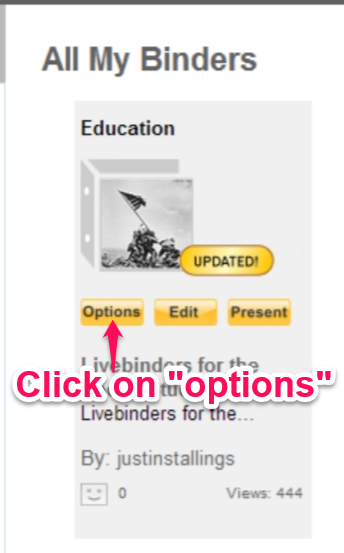
The first, and quickest way, is to go to your "My Binders" tab. From there, place your cursor on the Livebinder you would like to add collaborators to - this will bring up three quick menu tabs (Options, Edit, Present).

You'll then want to click on the "options" tab which will give you several options to choose from, including: share this Livebinder, collaborate, show details, link or embed, add to shelf, make a copy, edit it, present and delete from your account.

The option you'll want to click on should be the second selection, "collaborate".

Once you click on "collaborate" you will notice that the "Add or Remove Collaborators" selection is now on the left side of the webpage.

The second way is to add collaborators is via the "edit this binder" link once you open your Livebinder.  Simply open your binder, click on "edit this binder" link and then "binder settings".

Once you get into the binder settings of the Livebinder, you'll see the "add/delete" button where you can update your collaborators for that Livebinder.  
The collaborators that you add to your Livebinder will receive a email asking to approve to collaborate on that Livebinder.  Once they complete those steps, they will be added as a collaborator to that Livebinder.

Here's an example of a Livebinder that was collaborated by myself and Jen Petras (@jenpetras) on Cyberbullying:

Cyber Bullying

For more details on having your students collaborate on a Livebinder, please visit this Livebinder created by Tina & Barbara, the creators of Livebinders:

Monday, March 17, 2014

5 Classroom Resources for St. Patrick's Day


Happy St. Patrick's Day!

Here are 5 resources to use in your classroom for St. Patrick's Day:

Education.com

Education.com offers multiple resources for St. Patrick's Day.  If you are looking for activities, crafts, worksheets and recipes then this website has everything you may be looking for.  This website also offers resources on the Irish culture and history.  

History.com

History.com has several videos and articles for St. Patrick's Day.  Videos and articles cover everything from recipes,  Leprechauns and even why the color Green is used during the holiday.  

National Geographic

Nationalgeographic.com offers resources on the facts, myths and traditions for St. Patrick's Day.  They also offer a fun activity where students can create a St. Patrick's Day lollipop pin.

National Educational Association 

Nea.org has great resources to use for St. Patrick's Day.  Some of the resources you will find here include videos, arts & crafts, printables, worksheets, interactive maps, and tutorials.

St. Patrick's Day Livebinder

This St. Patricks Day Livebinder is full of resources for you and your classroom by @kbkonnected.  Resources include videos, interactives and printables.


Thursday, February 20, 2014

Livebinders for the Social Studies - Part 3


Livebinders for the Social Studies - Part 3:  Collecting and organizing lesson plan resources 

Now that you have had a chance to see some excellent Social Studies Livebinders and see how they are used, let's move on to the third Livebinders for the Social Studies post - collecting and organizing lesson plan resources.  I have also created a new Livebinder, Livebinders for the Social Studies, to show examples and work along side everyone as we go start going more in-depth into Livebinders:

Getting Organized

Livebinders provides a central location for all of your resources that you may have.  Regardless if you use Evernote, Dropbox, Google Docs or Microsoft programs such as Word or Excel, you can store those resources all in one Livebinder for quick and easy organization.  If you would like to add documents, pictures, etc to your binder, go to the "view" menu and click on "edit".  From there, click on "Add Content" and choose the type of content you would like to add.      


Livebinders also has a easy way to add documents from your Dropbox account and your Evernote account. 

To add files from your Dropbox account, simply click on "Add Content" then click on "My Dropbox".   


For material from your Evernote account, you can add the link via the Livebinders app or get the URL to the note or notebook and insert it into the tab or subtab of your choice.  Click here to read the recent blog post from the Livebinders blog about the Evernote addition to the Ipad App.  


Collecting Digital Resources

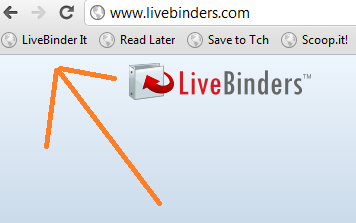
As educators, we run across multiple resources while searching the web.  Thanks to Livebinders, you can collect, save and share all of those resources.  To get started collecting your digital resources, the first thing you'll want to do is install the "Livebinder It" bookmarklet tool, click here to go to that page at www.livebinders.com.  
 Once you have installed the bookmarklet tool and found a website you would like to add to your binder, simply click on "Livebinder It" and a new window will pop-up allowing you to select which binder to add it to:


Need to see some of this in action?  Please feel free to visit the Livebinder at the beginning of this post, Livebinders for the Social Studies.  I will be working on it going forward with the next posts so stay tuned!