Showing posts with label edtech. Show all posts

Tuesday, July 28, 2015

FlipQuiz - a classroom review tool


FlipQuiz gives you the power to turn classroom reviews into a game that you can present in class, share via Twitter or Facebook or embed on your own website...all for free.   

You can create a Jeopardy-like game where you can create up to 6 categories and 5 questions per category.  Here's an example of a review board over World War II:

FlipQuiz Presentation Mode
Each question is worth a different amount of points, from 100 points to 500 points:

Battles Category: 100 point question 
Battle Category: 100 point answer
The website is also mobile friendly in that the website and the boards as well will adjust to your particular screen size.  This allows students to study wherever they are and not required to be in front of their computer.  

With the provided embed code whenever you create a new board, you can place the review on the classroom website or blog.  

There is also a "Pro" option available that gives you more features like creating teams, bigger image and audio uploads, and the ability to turn the game board into flashcards.  

Saturday, July 4, 2015

3 Awesome Education & Edtech Online Talk Shows


1.  Every Classroom Matters


Every Classroom Matters is a online show hosted by Vicki Davis (@coolcatteacher).  There are multiple episodes on this site where Vicki has interviewed people such as Todd Nelsoney (@techninjatodd) and Peggy George (@pgeorge).  The most recent episode was over Minecraft in the education world with special guest Joel Levin (@minecraftteachr).

2.  Classroom 2.0 Live


Classroom 2.0 Live is what started it all for me when I dove into the Edtech world.  Every Saturday a live show is hosted by Peggy George, Lorie Moffat (@ldmoffat) & Tammy Moore with a different special guest each week.  Each special guest discusses topics such as Evernote, Chromebooks, E-portfolios and Ipads.  You can also check out their Youtube channel here.

3.  Teachercast


Teachercast has a plethora of resources for educators.  Created and hosted by Jeff Bradbury (@teachercast), the site provides multiple podcasts with some of the biggest names in the education and technology world. Podcasts are updated constantly and you can also navigate through the archive to see previous videos as well.  There is also live interviews from ISTE 2015 archived on the site.    


Saturday, October 25, 2014

Cool Classroom Halloween Resources

Looking for some cool classroom resources for Halloween?


Writing Prompts:


Teach Hub: 7 Halloween writing prompts

Wrentham Public Schools: Halloween Writing Activities and Ideas


Pinterest Boards:


Halloween Language Arts Ideas

Halloween Classroom Ideas

Halloween - School Ideas

General:


Larry Ferlazzo's blog (ton of resources here)

The Teacher's Corner (crosswords, word search, etc.)

Education.com (a lot of classroom activities here)

Scholastic (includes Math and Science activities)

Cybraryman's website (pretty much everything you can think of here)

LiveBinders:


By Wisermar:

Halloween

By KB...Konnected:

Halloween 1


Thursday, June 5, 2014

Programing Tutorials - Learn coding with screencasts


Programming Tutorials - a app on the Windows store, is a great app to help you get started coding.  The app, which requires Windows 8.1 to run, provides free screen-casts that give you a step by step guide to coding.

The screen-casts range from programming languages such as HTML, Javascript, Java, Ruby, PHP and several others.  Each programming language has it's own set of screen-casts.

If you looking into creating a Windows Store app, Android app or a Iphone app, this app has you covered. The series of screen-casts for the Windows Store app development, for example, is a very well done series created by Bob Tabor (www.learnvisualstudio.net).  If you don't have Windows 8.1 to run this app, you can head on over to Bob Tabor's website and watch these videos for free.  Click here to visit the free screen-casts lists on his website.

Looking for more coding resources?  Feel free to visit my Coding 101 Livebinder:


Thursday, May 22, 2014

JetStream - Online School for Weather


Looking for resources to teach about weather or learn about weather?  I recently discovered a excellent resource from the National Weather Service called "JetStream".  

JetStream is a outstanding website that has a ton of resources for learning all different aspects of weather.  Topics cover, for example, the Atmosphere, the Ocean, Thunderstorms, Lightning and information regarding the Doppler Radar.  

Here's a sample from their page about Tornadoes: 


The Tornado page discusses everything from wind shear, Doppler Radar images and the Enhanced F-Scale. There is also a WMV video file that shows a train being blown off the track by a Tornado.  Click here to go to the Tornado page.  

JetStream also has several pre-made lesson plans that cover multiple weather topics.  Click here to go to their lesson plan page.  

Looking for more resources on Tornadoes or Hurricanes?  Please visit my Livebinders, Understanding Tornadoes and Understanding Hurricanes:

Sunday, May 11, 2014

Livebinders for the Social Studies - Part 5


Livebinders for the Social Studies - Part 5:  Presenting with Livebinders


When it comes to presenting material to the classroom, there are several platforms to choose from - platforms ranging from Microsoft Powerpoint to Apple Keynote and a slew of others.  These platforms provide a means of organizing data and presenting it to the classroom.  I myself have previously used Powerpoint when providing content every now and then to the classroom, which can be useful if used to it's fullest potential.

With that being said, one aspect that needs to bring special attention to your material/lesson is how engaged will it make your students in the classroom?  Thanks to Livebinders, students (and teachers) can now present the material they have created or put together to the classroom and beyond.

Livebinders provide a sense of ownership

Before we get into how you can present with Livebinders, you may be asking why you should be using Livebinders instead of the other options that are available?  Don't get me wrong, I think platforms like Powerpoint and Keynote can be useful when used properly.  With Livebinders, however, students can create their own online portfolio and work on it throughout the year.  With Powerpoints, once it is completed, students don't typically come back and build on it unless you design the lesson that way. Livebinders give the students ownership of their own learning and they are able to reflect upon what they have done.

Presenting with Livebinders

With Livebinders, you have the option of creating a presentation of your material.

To put your Livebinder in "Present" mode, first put your cursor over the "eye" on the top navigation panel:


When you do that, you should see a option to select "Present".  Click on "Present".  This will put your Livebinder into a presentation mode, which will look like this:


If you will notice, the "Present" mode gives your Livebinder more of a finished product.  You see the name of your Livebinder at the top left hand corner, the binder author at the top right and of course the material of your Livebinder being the center focus.

Using Livebinders also saves time.  You can fill your Livebinder with links to websites, videos and pictures. There's no need to create a slideshow and insert images or videos because they are already in your Livebinder ready to go.  Students can use Livebinders to present the material or projects they learned throughout the entire year.

This will show how the student has grown and learned since entering your classroom.  Reflection is a huge part of the learning process.

If you have any videos, pictures or stories to share about how you have used Livebinders in your classroom, I would LOVE to hear about them.  Please feel free to DM on Twitter or Google + at @justinstallings.

Tuesday, March 25, 2014

Livebinders for the Social Studies - Part 4


Livebinders for the Social Studies - Part 4: Using Livebinders to build on collaborative skills

On the previous post on "Livebinders for the Social Studies" we looked at how you can use the "Livebinder it" tool and how to use Livebinders in general to organize and gather resources for lesson plans.  On this post, we are going to look at how students can use Livebinders to build on their collaborative skills.    

When it comes to the Social Studies classroom, students take part in research projects on historical events or historical figures throughout the year.  Students research data in books, newspaper articles and, primarily, online content.  When you determine that your students will complete the project in groups, something you must consider is the "nuts and bolts" of how it will be done.  How are my students going to collaborate on the project?  What is the best way to make the project effective that will build my students' skills?

With Livebinders, you can provide your students a central location where they can collaborate and combine their efforts to enhance their learning.

The benefits of using Livebinders  

As a student teacher, I tried to engage my students as much as possible in collaborative activities.  One of the ways I used was creating a webquest and assigning responsibilities to where each group member had a responsibility (jigsaw method).  When I made the webquest, I hoped that my students would at least like the activity and have some fun while learning,  When my students started getting hands-on with it I realized how much they loved doing something besides something on paper or listen to me lecture.  What I also realized is how important it is to provide each student ownership of the project.

Livebinders gives you both the means of engaging your students and giving them ownership of what they contribute.  Livebinders also provide a means of collaborating and contributing throughout the year.  This is something they can constantly update and reflect upon.  

Collaborating on a Livebinder

Livebinders provide a way to engage each one of your students and give ownership of the project to not one member, but to all.  Each student will have the opportunity to contribute to the Livebinder when they are added as a collaborator.  Whenever they find a resource, they can add it.  Each member of the group can add a tab to their group's Livebinder and add content to that tab - which gives them part ownership of their group's Livebinder.

Having your students do a project on World War 1?  One member can create a tab on the key historical figures, one can create a tab on battles and another member can create a tab on pictures/videos.  All of this combined into one Livebinder where the students can reflect upon their learning.

When students are engaged, the learning experience is enhanced.  This also has the potential of sparking interest in your students that may have not been discovered prior.  As a educator, these interests are key to providing the most meaningful lessons possible.

How to add collaborators to your Livebinder

Please note that each student will have to have previously signed up for their own Livebinder account in order to collaborate on any Livebinder. Click here to go to the blog post on www.livebinders.com about how to have your students sign-up for a Livebinders account.

There are two ways which you can add collaborators to your Livebinder.

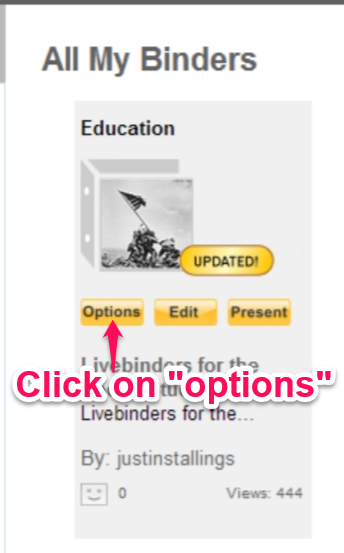
The first, and quickest way, is to go to your "My Binders" tab. From there, place your cursor on the Livebinder you would like to add collaborators to - this will bring up three quick menu tabs (Options, Edit, Present).

You'll then want to click on the "options" tab which will give you several options to choose from, including: share this Livebinder, collaborate, show details, link or embed, add to shelf, make a copy, edit it, present and delete from your account.

The option you'll want to click on should be the second selection, "collaborate".

Once you click on "collaborate" you will notice that the "Add or Remove Collaborators" selection is now on the left side of the webpage.

The second way is to add collaborators is via the "edit this binder" link once you open your Livebinder.  Simply open your binder, click on "edit this binder" link and then "binder settings".

Once you get into the binder settings of the Livebinder, you'll see the "add/delete" button where you can update your collaborators for that Livebinder.  
The collaborators that you add to your Livebinder will receive a email asking to approve to collaborate on that Livebinder.  Once they complete those steps, they will be added as a collaborator to that Livebinder.

Here's an example of a Livebinder that was collaborated by myself and Jen Petras (@jenpetras) on Cyberbullying:

Cyber Bullying

For more details on having your students collaborate on a Livebinder, please visit this Livebinder created by Tina & Barbara, the creators of Livebinders:

Thursday, February 20, 2014

Livebinders for the Social Studies - Part 3


Livebinders for the Social Studies - Part 3:  Collecting and organizing lesson plan resources 

Now that you have had a chance to see some excellent Social Studies Livebinders and see how they are used, let's move on to the third Livebinders for the Social Studies post - collecting and organizing lesson plan resources.  I have also created a new Livebinder, Livebinders for the Social Studies, to show examples and work along side everyone as we go start going more in-depth into Livebinders:


Getting Organized

Livebinders provides a central location for all of your resources that you may have.  Regardless if you use Evernote, Dropbox, Google Docs or Microsoft programs such as Word or Excel, you can store those resources all in one Livebinder for quick and easy organization.  If you would like to add documents, pictures, etc to your binder, go to the "view" menu and click on "edit".  From there, click on "Add Content" and choose the type of content you would like to add.      


Livebinders also has a easy way to add documents from your Dropbox account and your Evernote account. 

To add files from your Dropbox account, simply click on "Add Content" then click on "My Dropbox".   


For material from your Evernote account, you can add the link via the Livebinders app or get the URL to the note or notebook and insert it into the tab or subtab of your choice.  Click here to read the recent blog post from the Livebinders blog about the Evernote addition to the Ipad App.  


Collecting Digital Resources

As educators, we run across multiple resources while searching the web.  Thanks to Livebinders, you can collect, save and share all of those resources.  To get started collecting your digital resources, the first thing you'll want to do is install the "Livebinder It" bookmarklet tool, click here to go to that page at www.livebinders.com.  
 Once you have installed the bookmarklet tool and found a website you would like to add to your binder, simply click on "Livebinder It" and a new window will pop-up allowing you to select which binder to add it to:


Need to see some of this in action?  Please feel free to visit the Livebinder at the beginning of this post, Livebinders for the Social Studies.  I will be working on it going forward with the next posts so stay tuned! 


Tuesday, February 11, 2014

5 Excellent Windows Apps to Learn Code

The Windows Store provides excellent apps for writing and learning coding.  If you have a Windows PC or tablet (such as the Microsoft Surface) that runs Windows 8.1, you can get some really good apps to further develop your coding skills.  Here are 5 great coding apps in the Windows Store to get you started:

Code Writer is a great coding app that lets you create documents for HTML, Javascript, CSS, etc.  Once you create that new document, you can save it in SkyDrive.  According to the Windows store, "Over 20 syntax-highlighted file types supported including HTML, CSS, JavaScript, XML, C#, VB, C++, ASP, PHP, Markdown, Perl, Python, Ruby, SQL, and many other common languages".  (apps.microsoft.com)  

HTML Programs is a Windows app that gives you a visual of how certain things should look in HTML code. It starts by showing you some of the basics in HTML and then goes into more advanced coding such as lists, forms and tables.  There is already sample code in the app so this would work great if you just need to quickly have a reference of certain areas in HTML.  

HTML Master is a well-done Windows coding app.  This app provides literature over the basics of HTML, exercises to get hands-on with HTML and quizzes to test what you have learned.  If you are just starting your coding journey, you should definitely download this app and give it a try.

HTML School is a excellent app to get started with coding in HTML.  Providing literature on the basics of
HTML and also a coding editor, it is a solid app that will guide you to learning code quickly and efficiently.


HTML Playground is a app that lets you code with HTML, CSS and Javascript.  If you basically need a "playground" where you can input code and immediately see how it looks all within the same app, this app has you covered.  This app is great if you have some knowledge of HTML, CSS and Javascript and want to get your hands on doing the coding.  


Friday, January 31, 2014

Livebinders for the Social Studies - Part 2


Livebinders for the Social Studies - Part 2: 5 Excellent Social Studies Livebinders to see

On this second part of the Livebinders for the Social Studies series, I thought we should look at 5 excellent Social Studies Livebinders to get you familiar with how other educators and enthusiasts use Livebinders in the Social Studies field.  

Social Studies Resources Central

This Livebinder from GValdez is full of resources to use.  It has everything from History resources, Economic resources, graphs and virtual field trips.  
Social Studies Resources Central

A House Divided

Andrew Weber has put together a excellent binder, which was voted as one of the top ten Livebinders in 2012.  If you need resources for the Civil War period in American history, this is the Livebinder for you.  It has everything from vocabulary, readings and online tools.  
A House Divided

Ipad Apps for Social Studies

Looking for Social Studies Ipad apps?  Then this Livebinder from Angela Cunningham (@kyteacher) has you covered.  It has app categories from History, Civics and Government and Geography.  
iPad Apps

Black History Month

This is a wonderful Livebinder put together by kb...konnected.  It is full of lesson plans, printables and other resources regarding Black History month.  
Black History Month––Martin Luther King Jr.Day

Lewis & Clark

This is a excellent Livebinder from wisermar covering resources over the Lewis & Clark Expedition.  If has everything you'll need to cover this lesson in class - webquests, maps and clip art images.   

Sunday, January 26, 2014

Livebinders for the Social Studies - What are Livebinders?


Livebinders for the Social Studies - Part 1: What are Livebinders?

For over a year now, I have been guest posting a series of posts entitled "Evernote for the Social Studies" on notanotherhistoryteacher.edublogs.org, a blog by Melissa Seideman.  There are still a multitude of uses that Evernote holds for Social Studies teachers and students that I have yet to blog about, and more posts will be coming on that subject throughout the year.

Along with Evernote, I have been blogging about Livebinders and how they can further engage our students in the classroom and assist educators in the teaching process.  This year, I also wanted to look at how Livebinders can be used specifically in the Social Studies classroom.

I will also be cross-posting this series on notanotherhistoryteacher.edublogs.org.  If you have yet to follow that blog or follow Melissa Seideman on Twitter (@mseideman), now would be a great time.  Melissa has also posted excellent posts about Educational Technology and Social Studies related resources.

Livebinders - Your 3-ring binder for the web

Livebinders can be your one central source to collect resources, share resources, and collaborate with other educators and technology enthusiasts.  You can collect and curate resources that include: web addresses, documents, photos and many other things in your Livebinder.

In today's classroom, students and teachers use the power of the internet to gather resources for projects, resources for papers and resources to share in the classroom.  According to livebinders.com, "Physical 3-ring binders used to be the easiest way to organize all your educational resources. But now so much of what you want to organize is online. LiveBinders not only replaces the old 3-ring binder, but also opens up new opportunities for collaborating, organizing, and sharing that were never possible before."     


Here are some of my favorite ideas that students can use Livebinders for:


  1. Collect/organize blog posts - their own or fellow classmates
  2. Create a "My Evernote" tab - students can insert links to certain Evernote notes
  3. Research - students can use the "Livebinder It" browser extension to add a website link to their binder
  4. Comment on fellow classmate's binders - Livebinders allow you to add comments to a binder, which is great for peer review. 
  5. Upload lecture notes - whether it be a Evernote note link or a MS Word doc, students can upload/insert their class lecture notes.
Why Use Livebinders?

There a multiple reasons to use Livebinders in and out of the classroom.  It's free and very easy to use.  The creators of Livebiners, Tina and Barbara (@livebinders), provide the best support I've ever experienced with anything related to technology.  They love to share other's Livebinders and love to hear how what they created is making a difference.  


The problem with physical 3-ring binders is that resources and learning that has been done and collected with them stay in the binder.  Students have less of a opportunity to share what they have learned with physical binders, however, with Livebinders students can share via Twitter, Facebook, or by URL - thus giving students a multitude of ways to share with their fellow classmates.   

Want more Livebinders info?  Here are some more resources:


Click here for my other blog posts about Livebinders

Livebinders website: www.livebinders.com


Here is one of my Livebinders for Social Studies resources:


Saturday, January 25, 2014

5 Free Nook Math Apps for Kids

Here are 5 free math apps for your Nook HD + and Nook HD that students in your classroom could use to help them with them with their Math skills:

Math Racer  

Math Racer Addition is a fun math game for kids that requires the player to add different numbers.  At the beginning, the player gets to choose the color race car they want and choose the numbers that want to play with (1's, 2's, 3's, 4's, etc).  If the player chooses to play with 1's, the game will ask the player to do addition with 1's - i.e. 1+2, 1+3, 1+10, etc.  Each time the player gets the answer right, their race car advances to the "finish line".  It will track their score and time so that the player can keep track and try to beat their record.  

Math Brain Trainer offers levels of difficulty in levels of addition (Easy, Medium, Hard).  Each level gives you a time clock which you must beat by selecting two numbers that add to the given target for that level.  For example, the target number is 16, thus you could select two eights in order to move on to the next target.  It also includes classical music that you can turn on or off that runs in the background while you play the game.  


Monkey Math - Jetpack Adventure is a fun game for kids to practice their math skills.  You control the main character of the game (which is a monkey on a jetpack) as he races across the "Enchanted Islands of Arithmetics" to stop the evil rogue, "Mean Monkey" from stealing ancient treasures of the island.  The game is a side-scrolling adventure where you must count numbers in order to make it to the end of the level.  


Mult Mania is another side-scrolling game which you must control the character and answer multiplication questions in order to reach the end of the level.  This free version contains multiplication tables for 10X, 5X, 2X, 4X and 9X.  According to the notes for the game, this game was created by a veteran middle school teacher.  


Kinder Zoo is a game that lets kids build on their math, counting and spelling skills.  Students will follow the in-game directions (verbal or on-screen) as they guide the zoo keeper to the right answer.  For example, in the "number identification" game the in-game prompter will tell the player to identify, for example, the number "3".  The player will then draw a path for the zoo keeper to the animal that has the number "3" on it.